Why can't I push?
What the Push blocked banner means, and how to clear each reason a document won't send to your ERP.
What you'll do
Understand why a document shows a Push blocked banner, or why the Push to ERP button is missing, and clear it so the invoice can go to your ERP.
Before you start
- Open the document that will not push.
- Read the banner near the top. It names the exact reason, and each reason below has its own fix.
The common reasons
A required field is missing or inactive
Your ERP needs certain fields before it will accept a bill, such as a GL account, department, location, class, or customer. The card at the top of the document says Push blocked and names exactly which ones are missing or no longer active in your ERP.
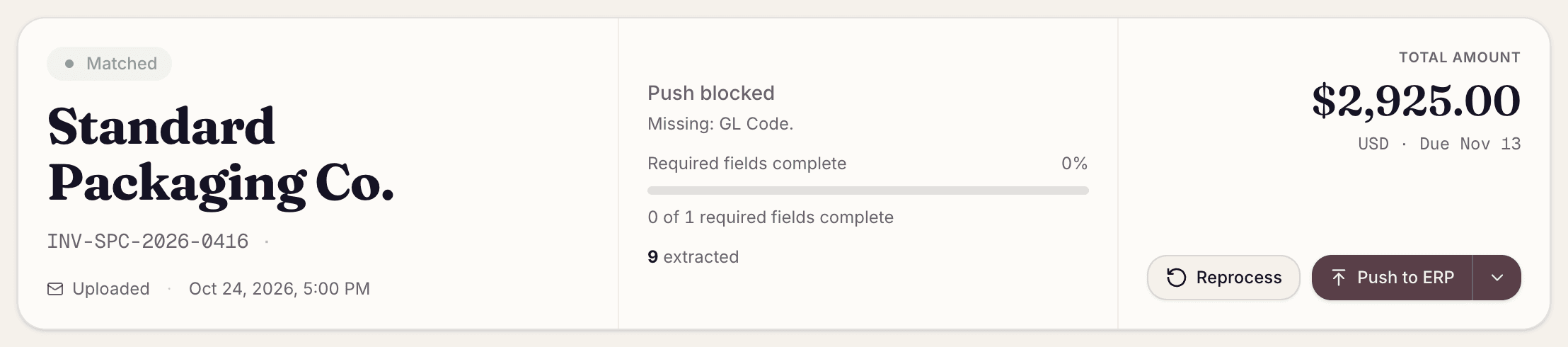
Fill them in on the Matching tab, in Push Fields or on the line itself, then click Push to ERP again. If required fields are missing but nothing else is wrong, the button still shows, and it asks you to confirm before pushing anyway. For help coding lines, see Correct line items and GL coding.
The vendor hasn't been confirmed
When Fluxity can't be sure which vendor sent an invoice, it holds the document until someone checks. The Matching tab says vendor unconfirmed, and the vendor row explains why, for example that no vendor matches the name as written, or that the name was read two ways. If you click Push to ERP anyway, Fluxity tells you the vendor hasn't been confirmed.
- On the Matching tab, check the vendor. Click Confirm if it's right, or change it to the right one.
- Open the More actions (…) menu and choose Approve. Confirming settles the vendor only; the document still needs this approval. If Approve isn't in the menu, an invoice period hold comes first; see The invoice period or prepaid split needs review below.
- Approving sends the document to your ERP if nothing else is holding it. If it doesn't go, read the banner again for the next reason.
It looks like an invoice you already pushed
If a document has the same vendor, invoice number, and amount as one Fluxity already pushed to your ERP, you will see Possible duplicate of a pushed invoice with a link to the earlier document. Compare the two. If this really is a separate invoice, choose Approve from the More actions (…) menu; approving sends it to your ERP. If it is the same invoice sent again, archive it from the Documents list instead.
Two documents came in the same email
When one email carries two attachments from the same vendor for the same amount, it is often one charge sent twice. Fluxity blocks the push on each of them, shows Possible duplicate — push blocked, and links the other document so you can compare them. The block clears only on the document where you click These are separate charges.
- They really are two charges. Open each document and click These are separate charges. Each one can then push.
- It is one charge sent twice. Decide which document is the invoice you will pay, open it, and click These are separate charges to release that one. Then go back to the Documents list and archive the other one with the archive icon on its row, so it is never pushed. Leave its block in place. The button's name describes the pair, but clicking it releases only the document you have open.
The bill was posted directly in your ERP
The invoice is waiting on a receipt
Some vendors are set up so a bill only goes out after the goods are confirmed received. Until the receipt arrives, the document shows Awaiting receipt and a Waiting for item receipt banner, and it rechecks on its own. When the receipt shows up, it becomes ready to push again. If you know the bill should go out anyway, Continue without receipt sends it on without waiting.
The invoice period or prepaid split needs review
Some invoices need a second look at their dates before they post: one that covers a service period after the invoice date, one dated unusually far in the past or future, or one that would post into a closed accounting period. Prepaid expenses that are spread over several months can need the same review. Fluxity holds the push until someone checks it, shows Push blocked — invoice period needs review with the dates it is unsure about, and hides Push to ERP. Approving the document does not clear this hold, and neither does forcing a push. If the dates are right, choose the option on the card that confirms them. Proceed unsplit is for administrators and asks for a reason, so if that is the only option, ask your administrator. If the dates are wrong, correct them first, then follow the card's instructions.
After a push: the bill was already there
If the same bill already existed when Fluxity pushed, it does not create a second one. You will see an amber Duplicate badge and a note that the bill already existed in your ERP. There is nothing to fix. The bill is already there.
What happens next
Once you clear the reason, the Push to ERP button comes back and a successful push clears the old banner. The Timeline records what happened, so you can see how it resolved.
If you get stuck
- Not sure whether a field is required, or need a receipt setting or a force-create changed?
- Need to fix coding first? See Correct line items and GL coding.