Process your first invoice
Add one invoice, check what Fluxity captured, and send it to your ERP as a draft bill.
What you'll do
Take one invoice from start to finish: add it, check what Fluxity read, and push it to your ERP. By the end you will have a draft bill waiting for approval in your accounting system, and you will know where every step lives.
Before you start
- You can sign in to Fluxity.
- Your ERP is connected. Your administrator sets this up once, so if you are not sure, ask them.
- You have one invoice as a PDF, JPG, or PNG.
Add the invoice
There are two ways to get an invoice in. Use whichever is easier.
- Upload it. On the Documents page, click Quick Upload and pick the file from your computer, or drag the file onto that button. To add several files at once, use Upload Page.
- Forward it. Send the invoice to your team's Fluxity inbox address. Anything that arrives there is picked up automatically. Your administrator can tell you the address.
The invoice appears in your Documents list right away, under Processing. The list opens on the Matched view, so if you don't see it, click Processing or All documents in the strip of views at the top.
Check what Fluxity captured
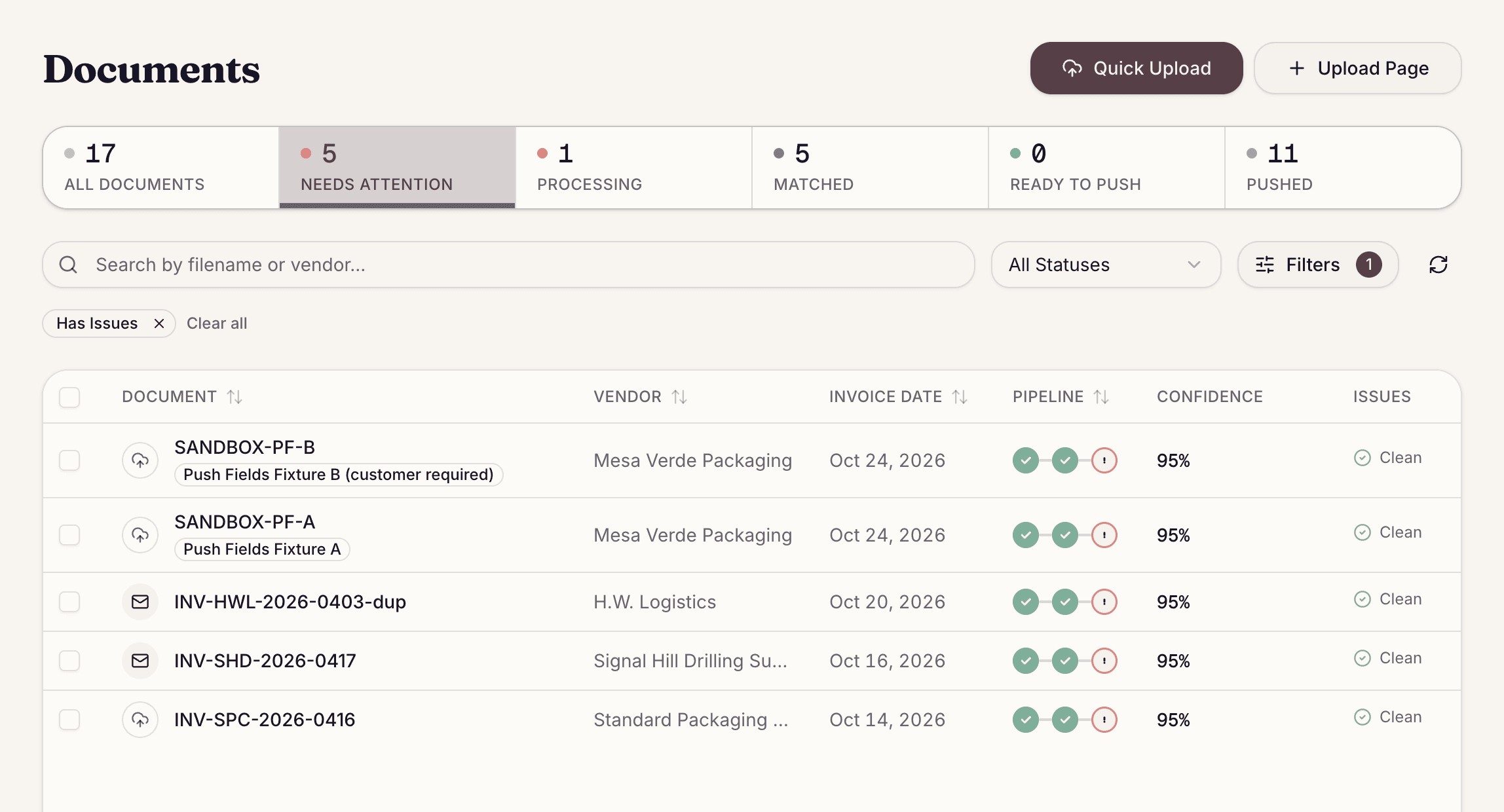
- The document starts in the Processing view and moves to Matched when Fluxity is done. If something needs your eyes, it also shows up in Needs attention.
- Click the row to open it.
- On the Extracted Data tab, confirm the vendor, invoice number, dates, and totals match the invoice in front of you. Anything Fluxity was unsure about is marked for you to confirm or correct.
- On the Matching tab, check the vendor, the purchase order it linked (if there is one), and the account coding on each line. Anything that does not line up, such as a line billed above its purchase order, is listed under Issues.
- If the Matching tab says vendor unconfirmed, Fluxity wasn't sure which vendor sent the invoice. Check the vendor shown and click Confirm, or change it to the right one. Confirming settles the vendor only; you then choose Approve from the More actions (…) menu, which sends the document to your ERP if nothing else is holding it. See Why can't I push?.
Send it to your ERP
When the document looks right, click Push to ERP. Fluxity creates the bill in your accounting system as a draft, so someone can give it a final approval before it posts. The original invoice is attached to the bill a moment later.
What happens next
The draft bill is now in your ERP, ready for your normal approval step. Back in Fluxity, the document's Timeline records what happened and when, so you always have a trail.
If you get stuck
- Nothing to review? Open the Needs attention view to see only the documents waiting on you.
- The Push to ERP button is missing, or you see a Push blocked message? See Why can't I push?.
- A line has the wrong amount or account? See Correct line items and GL coding.